
Plugin System
Plugin System
This page introduces the Plugin System. If your version does not support it, update to 2.0.0 or later.
Plugins extend the software beyond its built-in BP, score, and team information features. They can add operator pages, overlay windows, designer controls, and other functionality.
For example, some Built-in Plugins provide tools for creating team JSON files and a match stopwatch.
View installed plugins on the Plugins page, or download other developers' plugins from the Plugin Marketplace.
Plugins are extensions that execute program code, rather than ordinary configuration files. Their developers are responsible for third-party functionality and compatibility. Obtain plugins from trusted sources.
1. Understand Plugin Management
Click Plugins in the left navigation to open Plugin Management.
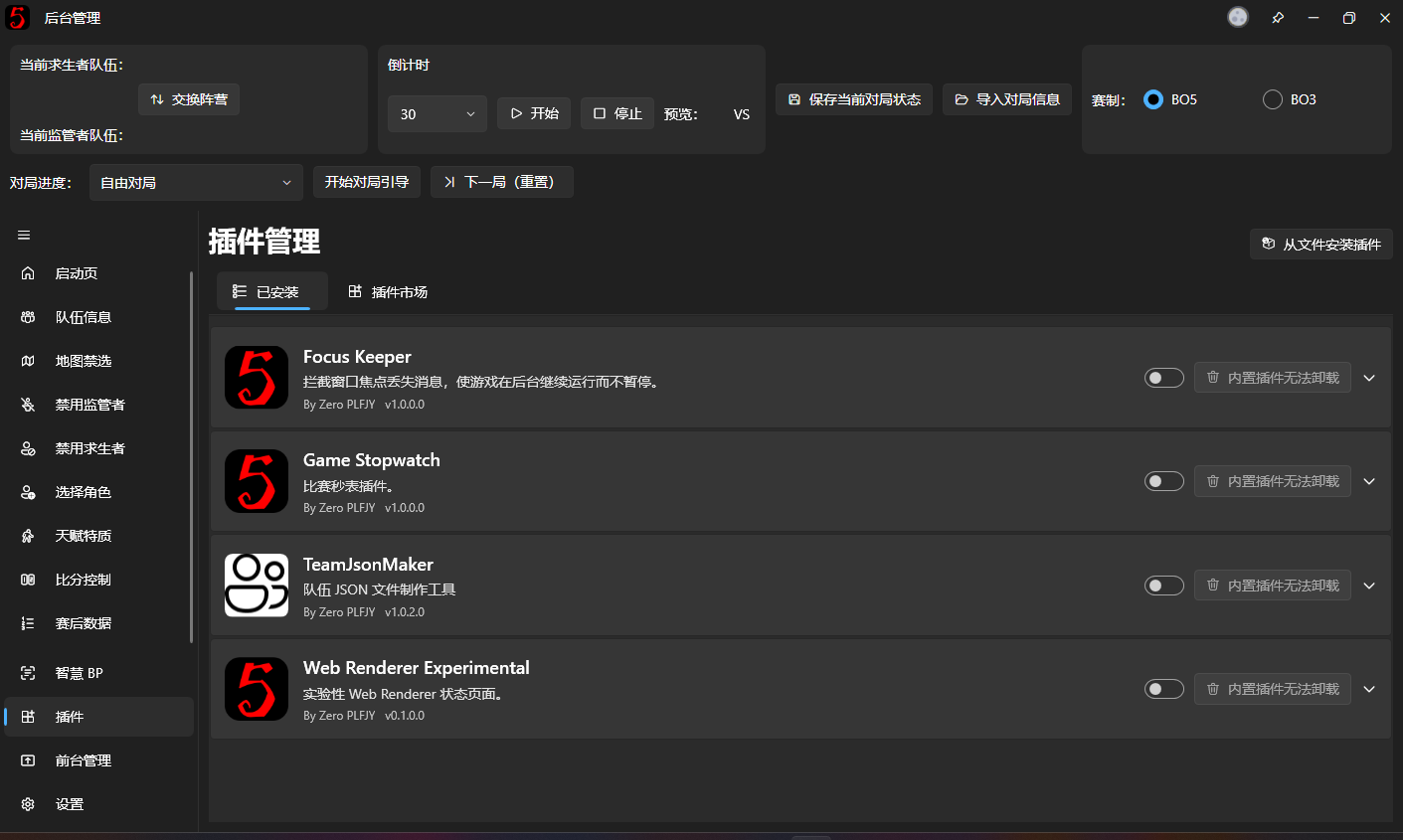
Screenshot note (to be removed): Capture the full Plugin Management page, including the heading, Install Plugin from File, and the Installed and Plugin Marketplace entries.
There are two main sections at the top:
- Installed: view and manage plugins installed on this computer.
- Plugin Marketplace: browse, install, and update plugins from other developers.
Install Plugin from File at the upper right installs a plugin archive already on your computer.
Most users should install through the marketplace rather than locate and manage plugin files manually.
2. Install through the Plugin Marketplace
Open Plugin Management and switch to Plugin Marketplace.
The marketplace retrieves available plugins from an online Plugin Registry Source and shows names, descriptions, authors, versions, and installation status.
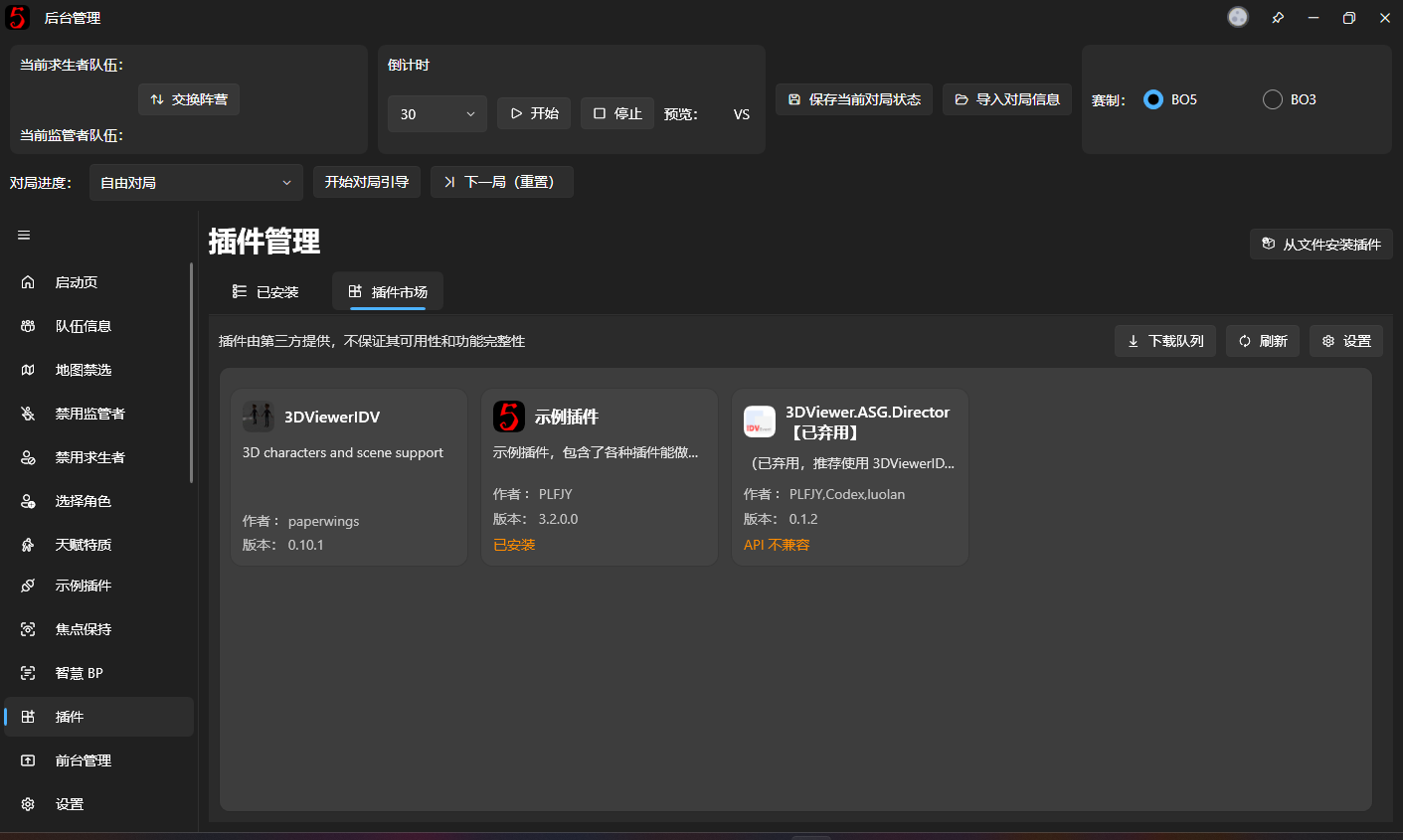
1. View plugin details
Click a plugin entry to open its details.
This shows basic information and, if supplied by the developer, README instructions.
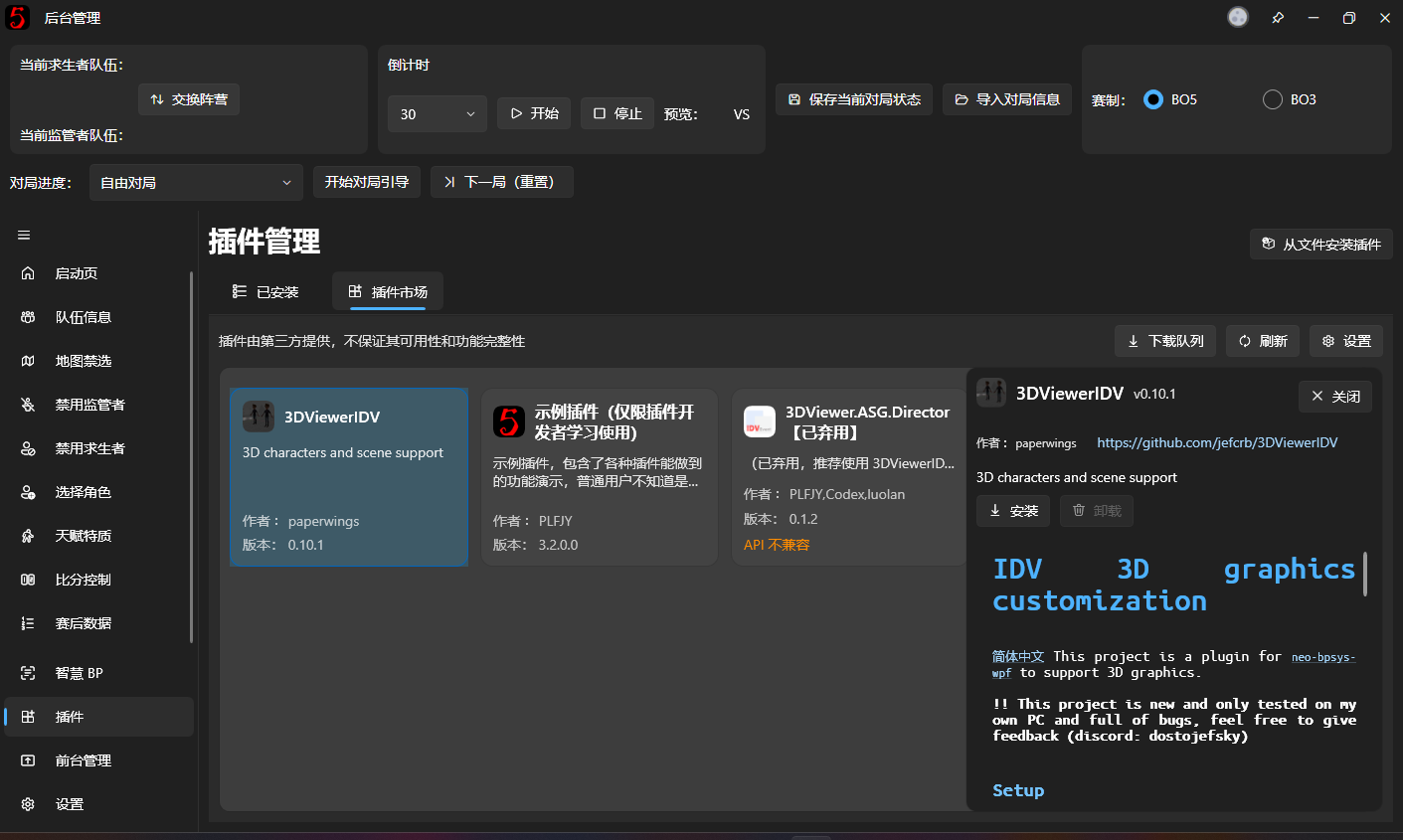
Read the description before installing to understand the features and any additional requirements.
Plugins can offer very different features:
- New pages in the operator interface.
- New overlay windows for capture in OBS.
- New controls for the v3 Overlay Designer.
- Auxiliary functions that do not necessarily add a page or window.
The absence of a new operator page does not necessarily mean a plugin failed. Check its own feature description.
2. Install a plugin
Click Install on the plugin's details page.
The software adds it to the download queue and downloads its package automatically.
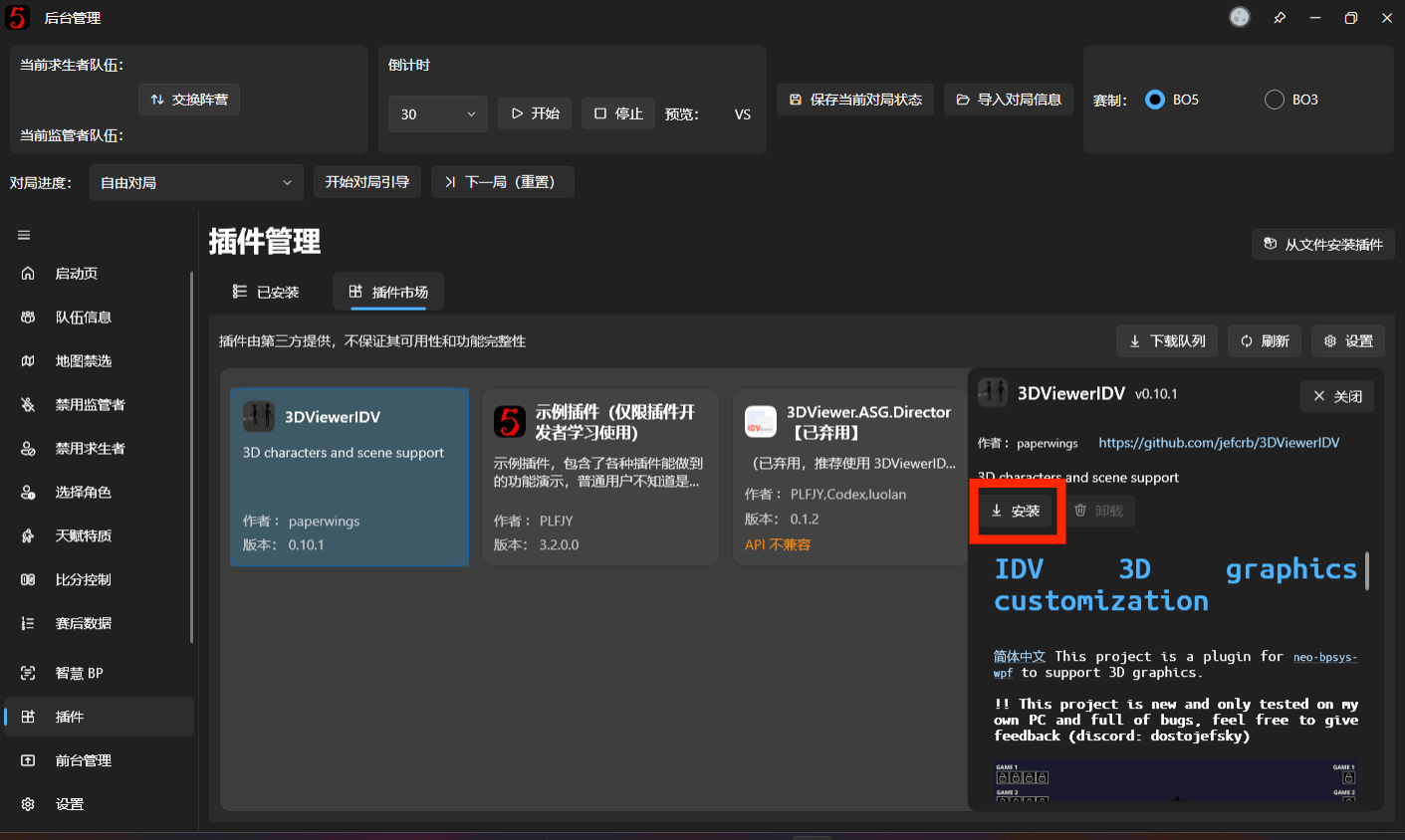
After downloading, the software checks and installs the package. If the marketplace provides a SHA-256 checksum, it also verifies the downloaded file against it.
The plugin then appears in the Installed list.
Restart the main program after installing a new plugin.
Plugins load at startup. Finishing the download and installation does not make the plugin active in the currently running program.
3. Check download progress
Click Download Queue at the top of the marketplace to view active and queued downloads.
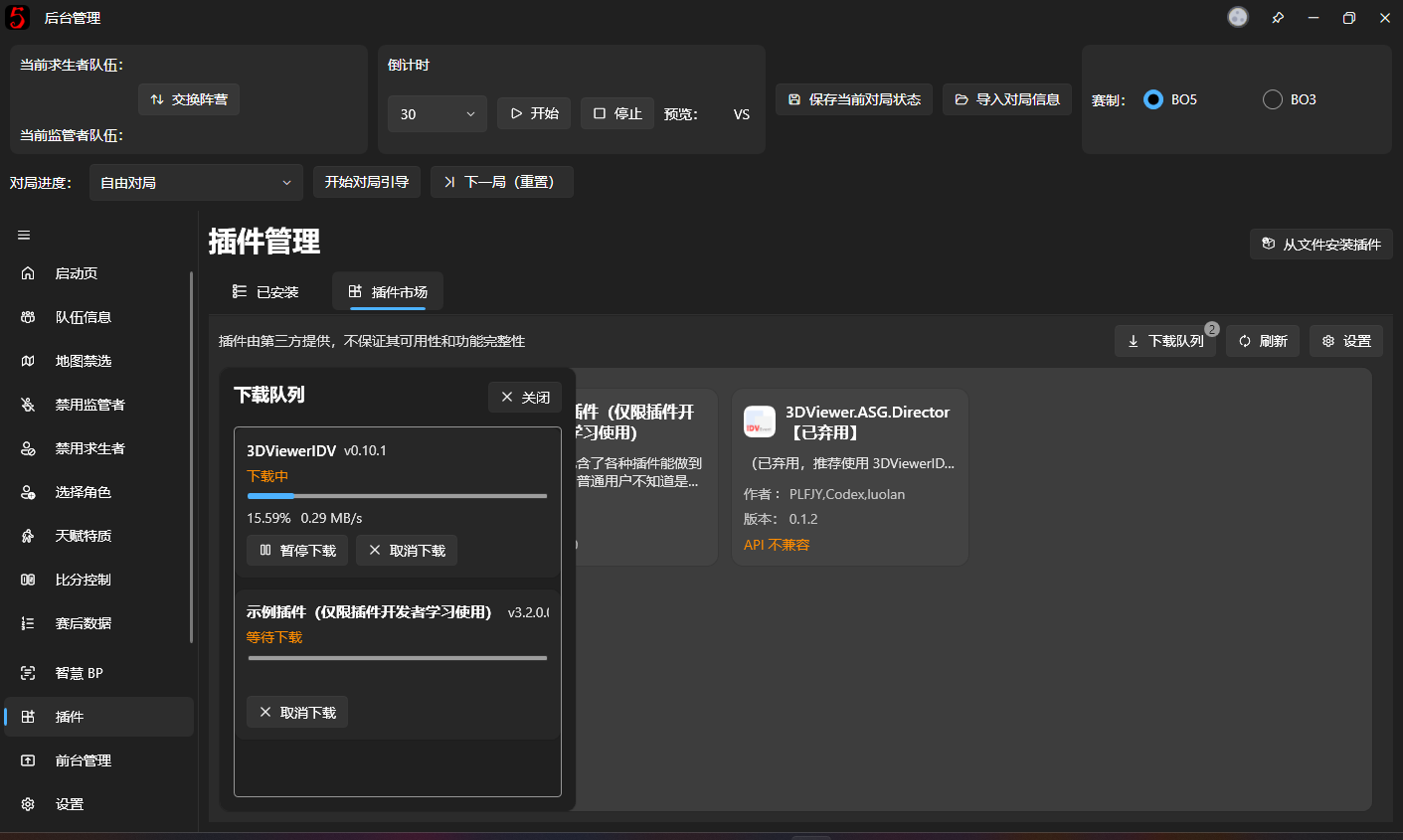
You can add multiple tasks, but downloads run sequentially to avoid excessive resource usage.
Tasks can be paused, resumed, or canceled.
After a temporary network error, the software can continue using previously downloaded data, usually without downloading the entire package again.
4. Restart the software
After installation, Restart to Apply Changes may appear.
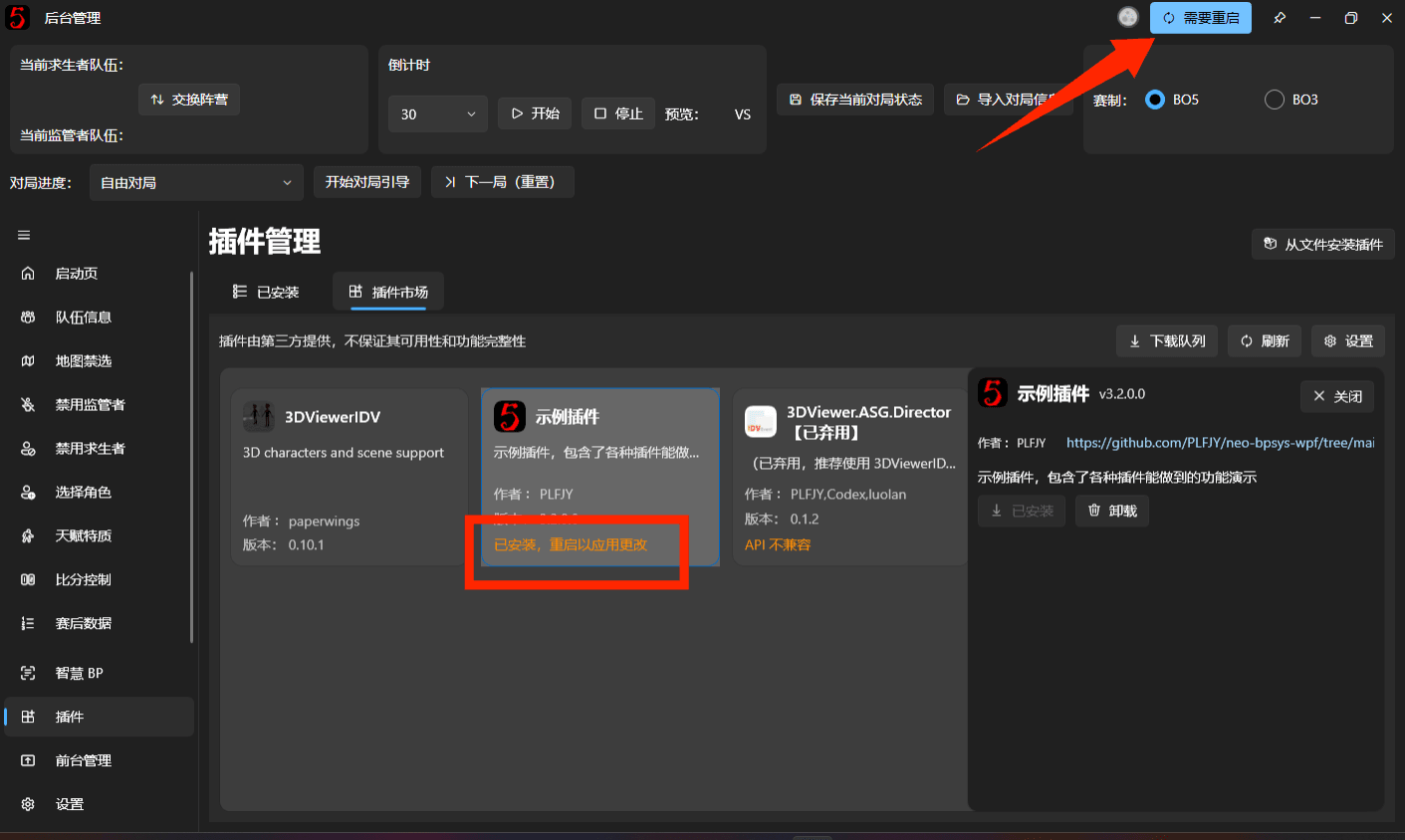
Close and reopen the software normally, or use its restart control.
Only after restart does the plugin load and register its operator pages, overlay windows, and other features in the appropriate locations.
3. Manage installed plugins
Switch to Installed to view all plugins installed on the computer.
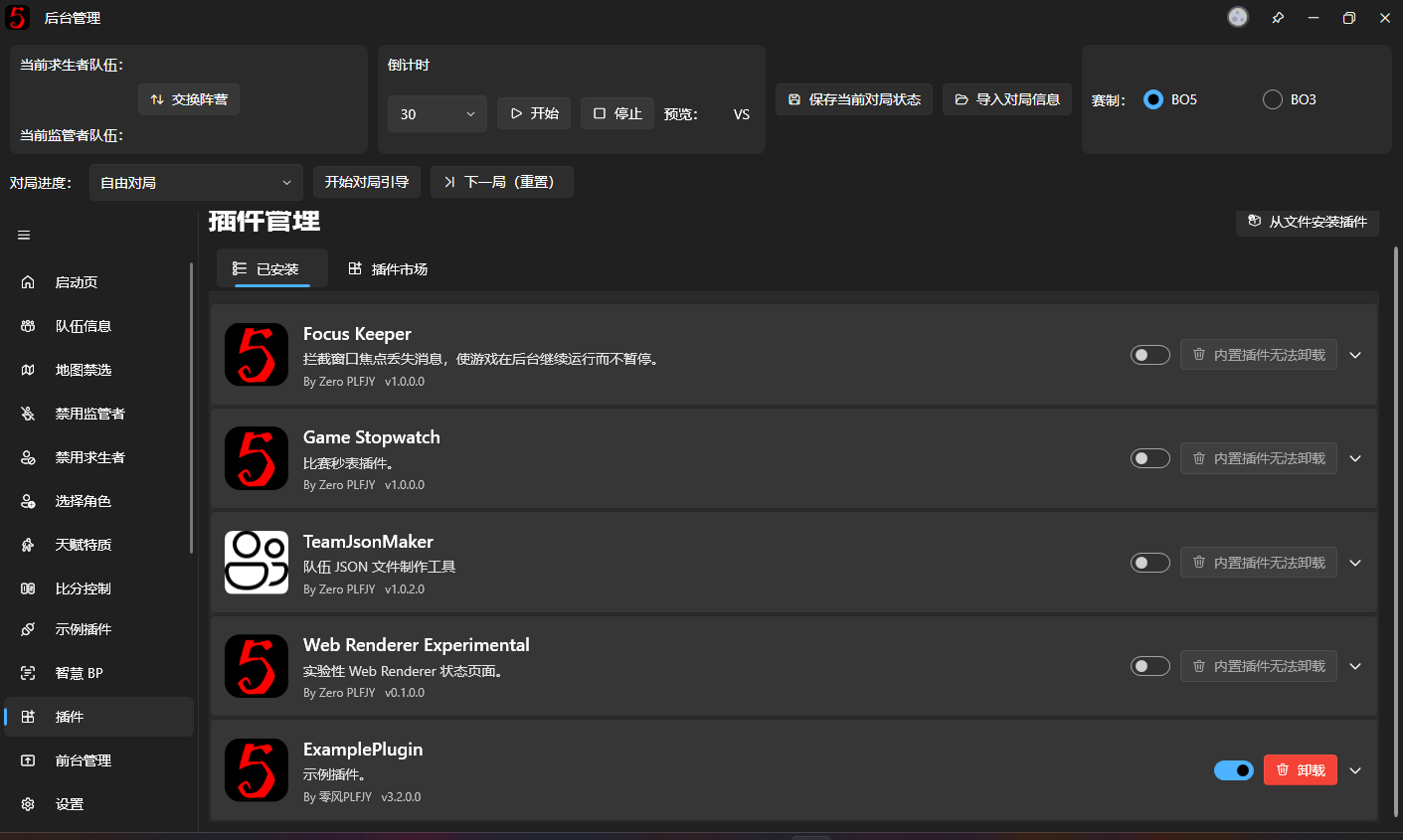
Each entry shows its name, description, author, and version.
Click a card to expand information such as the project URL and plugin status.
1. Enable and disable plugins
The toggle on the right of each card controls whether the software uses that plugin.
Disable plugins temporarily when you do not need them, without uninstalling them.
Enabling or disabling a plugin takes effect after restarting the software.
For example, if a plugin provides an overlay window, disabling it and restarting means it no longer registers that window.
To use it again, enable it and restart.
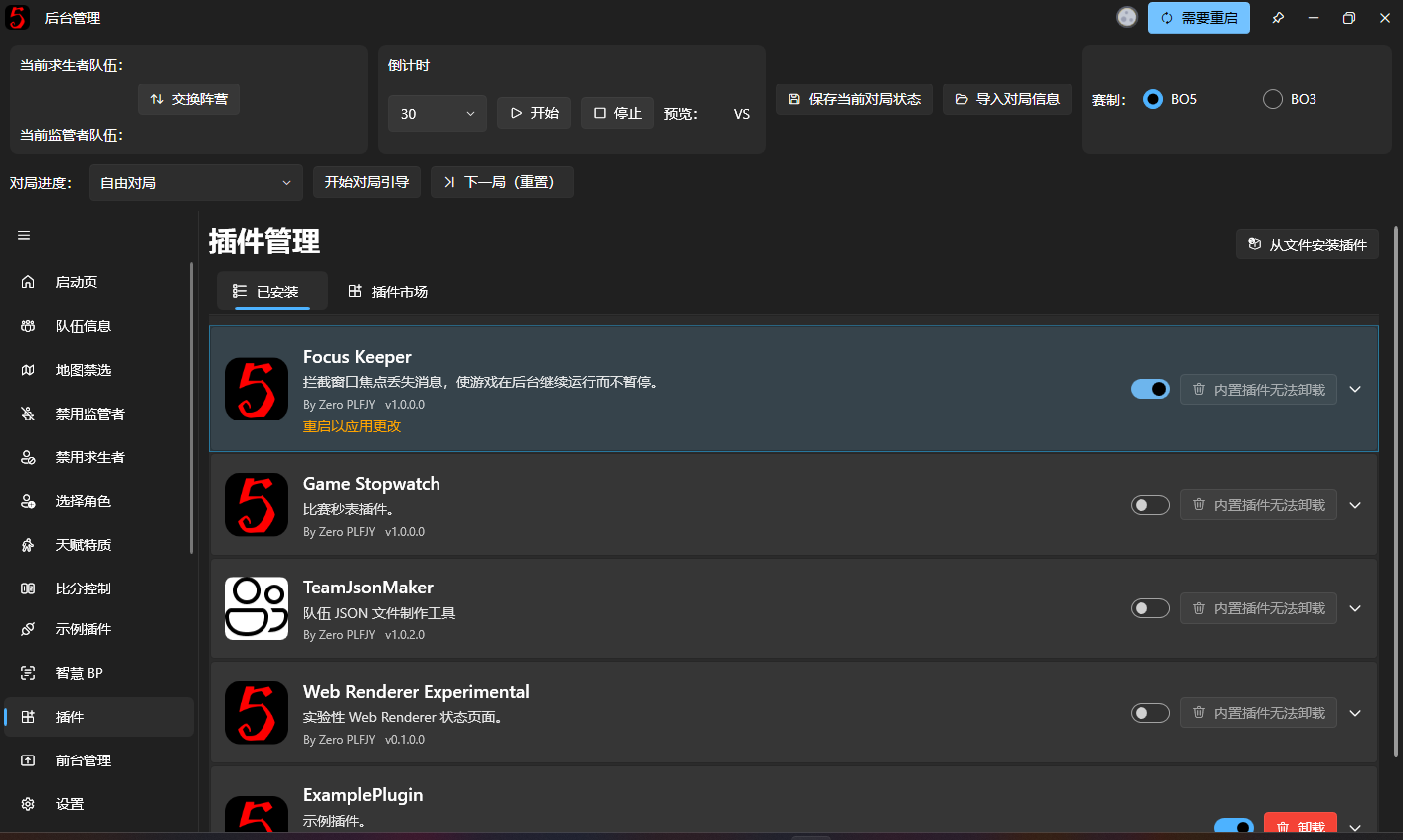
Screenshot note (to be removed): Show the toggle on the right of the plugin card, preferably including the restart prompt after a change.
2. Uninstall plugins
Click Uninstall on the right of a plugin you no longer need.
This marks it for removal rather than immediately deleting the running plugin.
Removal occurs when the software restarts.
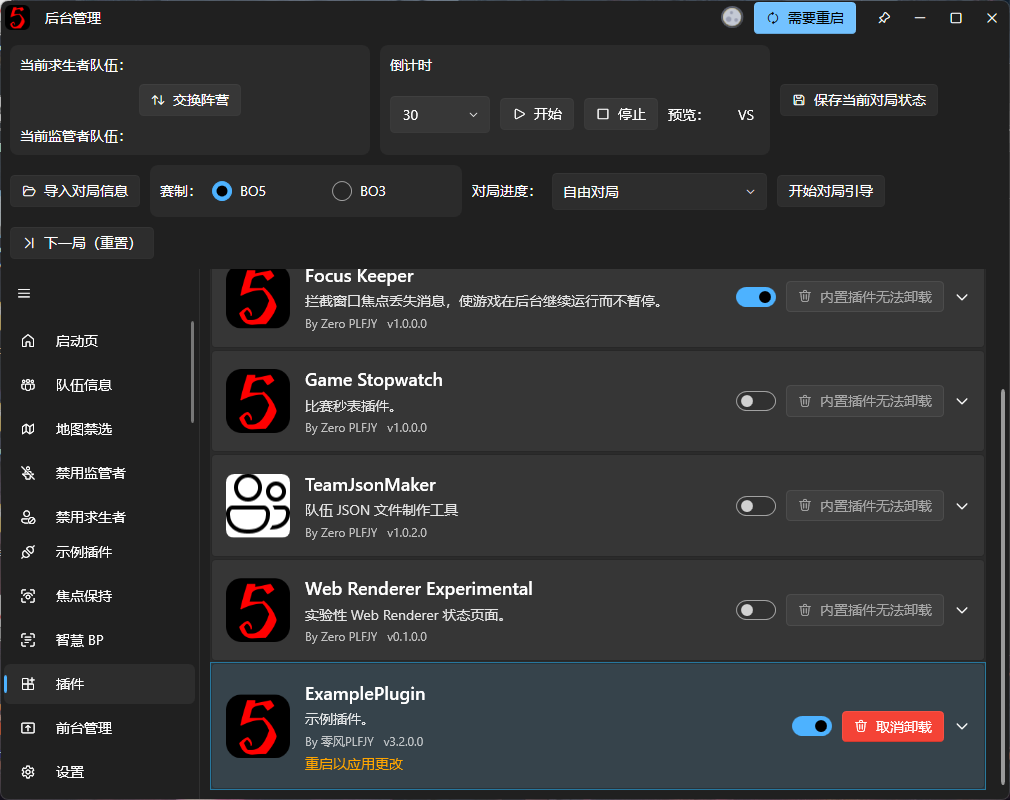
If you clicked by mistake, use Cancel Uninstall before restarting.
3. Built-in Plugins
Some plugins are bundled with the software as part of its distribution.
Examples include tools for creating team JSON files and displaying a match stopwatch.
They can appear in Plugin Management, but Built-in Plugins cannot be removed with the ordinary Uninstall button.
If you do not want to use one, disable it where supported and restart.
4. Update plugins
The marketplace also checks installed plugins for new versions.
When the marketplace version is newer than the installed one, Update appears in its details.
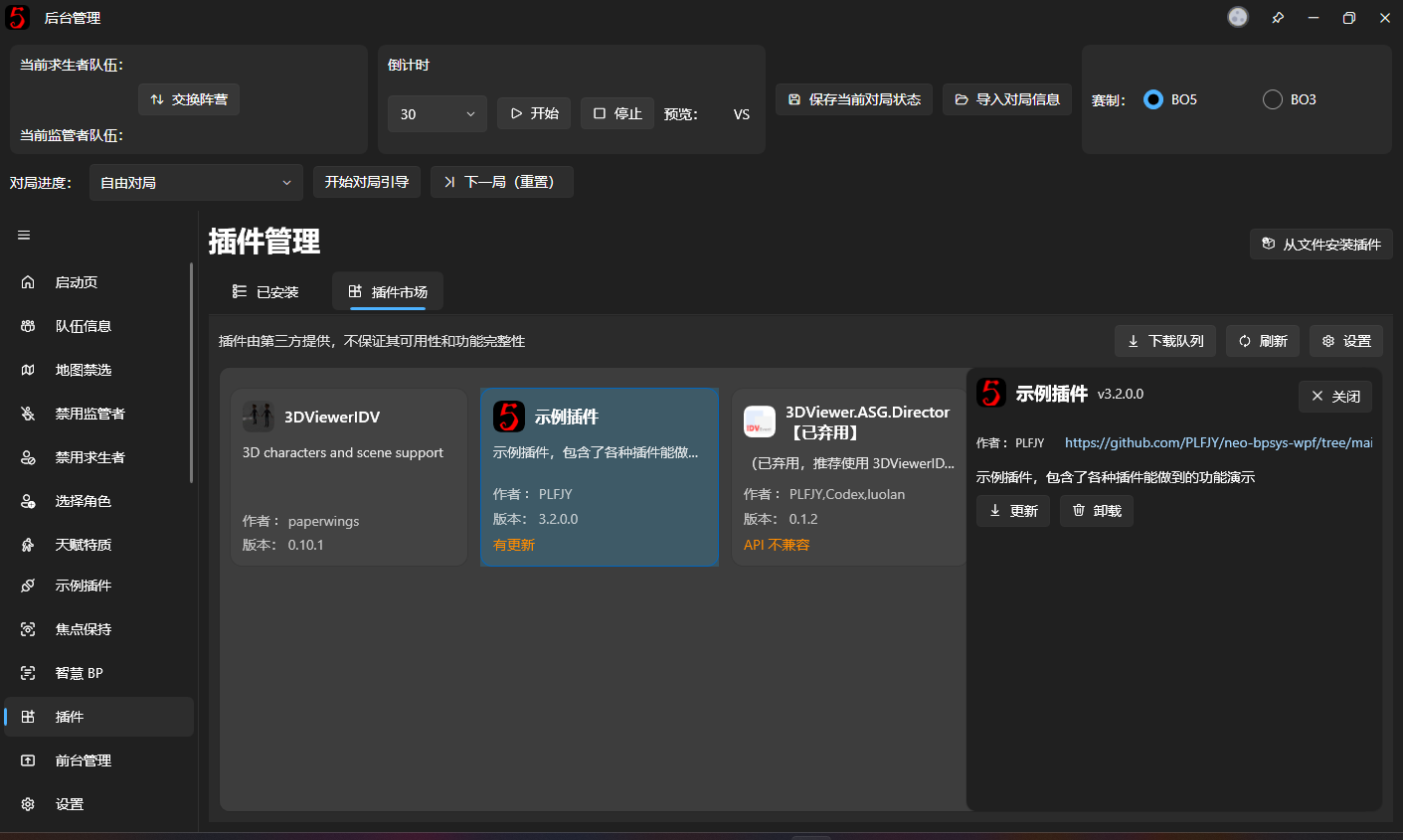
Click Update to download and prepare the new files.
Because the old plugin may still be running, its active files are not replaced immediately. The update is applied at the next startup.
The Installed list shows the current version, the pending new version, and a restart prompt.
The new version loads after restarting.
If compatibility problems occur after an update, contact the author or temporarily disable the plugin to avoid affecting a live tournament.
5. Install from a local file
You can also install plugin packages obtained outside the marketplace.
Click Install Plugin from File at the upper right of Plugin Management and choose a local archive.
The file picker currently supports:
.zip.7z
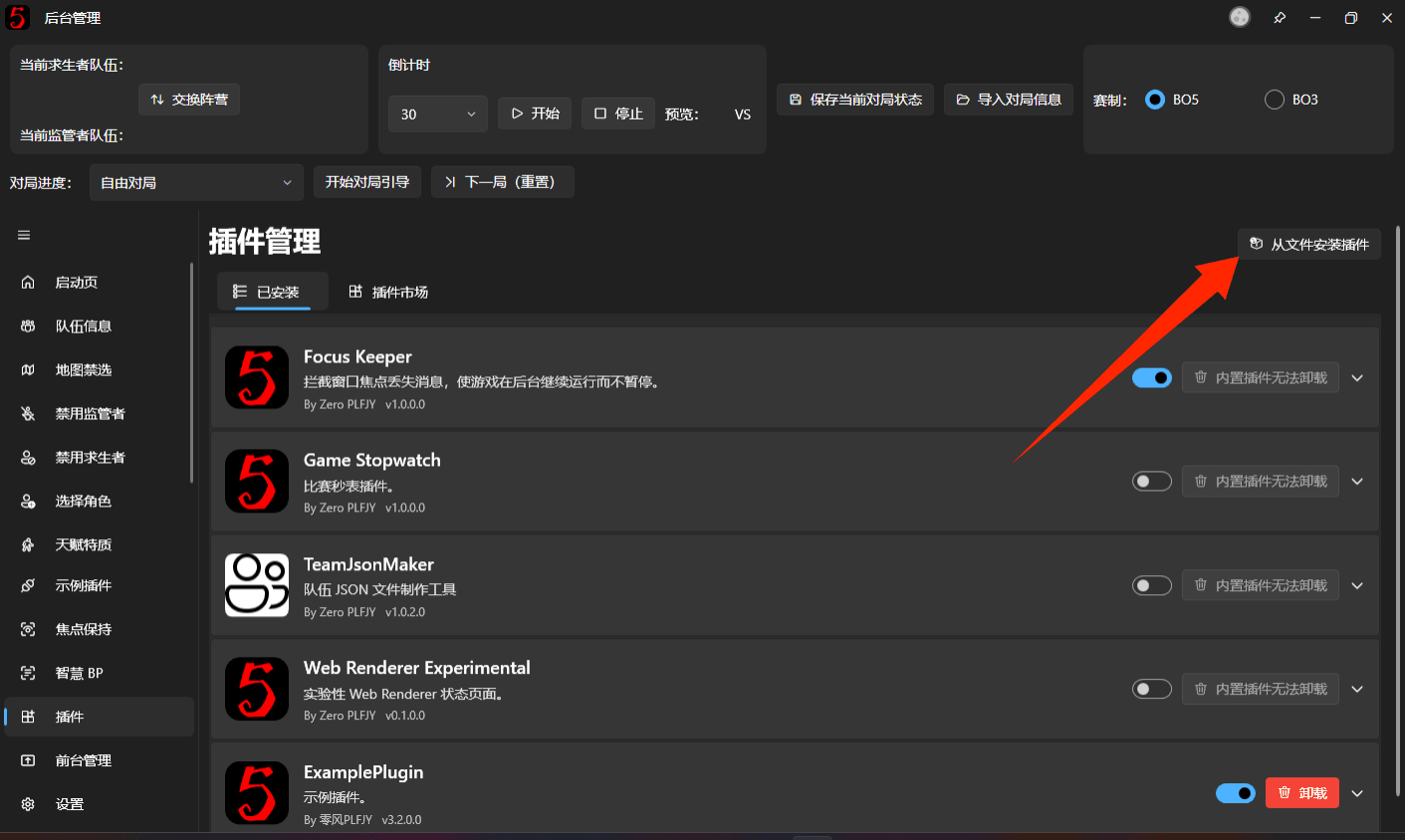
The software reads plugin information, checks compatibility, and attempts installation.
The archive must be a package that follows this software's plugin format. Ordinary ZIP files, source-code archives, and Overlay Layout Packages cannot be installed as plugins.
Restart after installation.
For plugins unavailable in the marketplace, confirm that the source is trustworthy and read the author's installation instructions.
6. Plugins and Overlay Layout Packages
Some plugins supply custom controls, overlay windows, or animation Triggers to the v3 designer.
If an imported .bpui package uses them, the software may report missing plugins.
This is the normal dependency mechanism and does not mean the package is damaged.
Missing plugins during import
When importing a .bpui in Overlay Window Management, notices appear if required plugins are absent or too old.
They may list plugin names, required minimum versions, installed versions, and affected controls or windows.
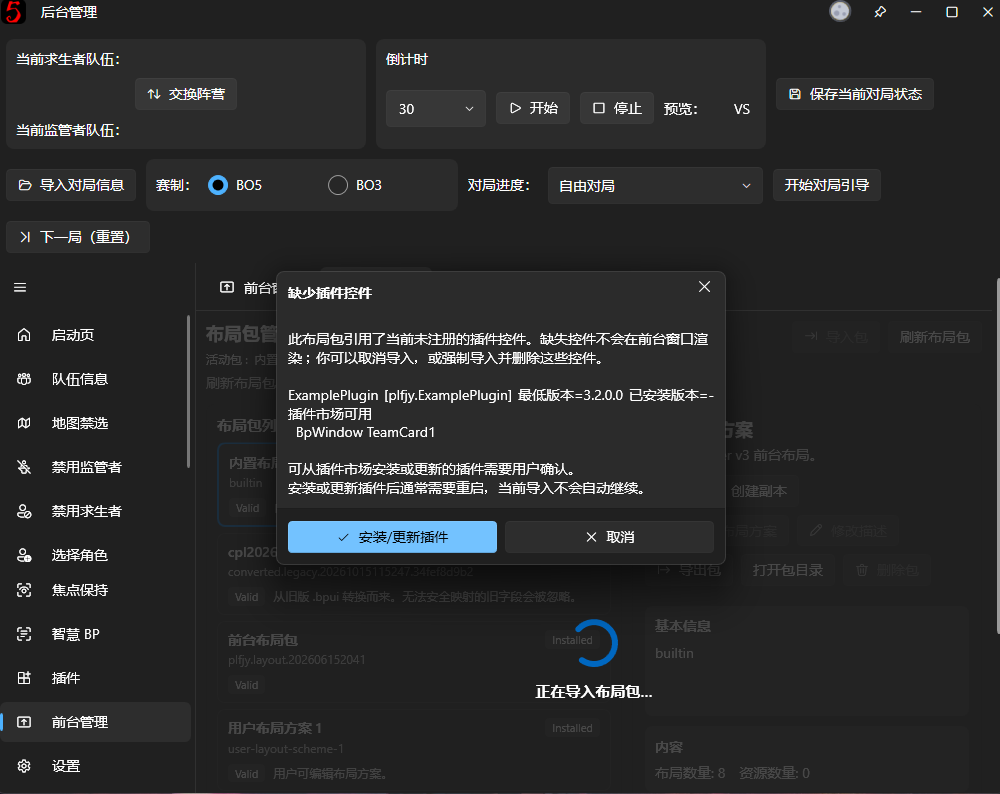
If a suitable version is available in the marketplace, choose Install/Update Plugins to download and install it.
This requires user confirmation. Importing a Layout Package does not install or update plugins without confirmation.
A main program restart is usually required afterward.
What happens without the required plugins?
Other package content may still import normally.
Controls or windows supplied by missing plugins may not display properly until those plugins are installed and loaded.
The designer can preserve their configuration and indicate missing plugins while editing. The content may resume working once the plugins are installed and the program restarted.
When receiving a shared layout, check whether its author specifies required plugins.
Plugins and BPUI are different
Distinguish these file types:
| File | Purpose |
|---|---|
Plugin package (.zip / .7z) | Install additional program features, controls, or windows |
Overlay Layout Package (.bpui) | Store overlay layouts, image resources, Animation Behaviors, and plugin dependency information |
.bpui packages do not bundle plugin DLL program files.
Recipients of layouts that depend on third-party plugins must install those plugins separately.
For Layout Packages, see v3 Overlay Designer.
7. FAQ
I installed a plugin but cannot find its features
Check that installation succeeded and restart the software.
If features are still missing, return to Installed, confirm that the plugin is enabled, and check its status.
Not every plugin adds an operator page. Some only provide overlay windows, designer controls, or internal functionality. Read its README.
The plugin reports an incompatible version
Software Version Too Old or API Incompatible means the plugin's declared API version does not match the main program's supported version.
The software may prevent installation of that marketplace version.
Check for a main program update first. If you already use the latest version, wait for the plugin author to release a compatible version.
Changing a version number in a plugin file cannot guarantee compatibility. Different plugin API versions may have actual code differences.
The Plugin Marketplace will not load
Click Refresh at the top to retry.
If the list still fails to load, the network connection or Plugin Registry Source may be temporarily unavailable.
Switch sources in marketplace Settings, as described in the advanced section below.
Installed local plugins that load normally can generally still be used when the marketplace is unavailable.
Plugin download failed
Check the error in Download Queue, then retry.
For files hosted on GitHub, try another Download Mirror in marketplace settings.
Why can some plugins not be uninstalled?
Built-in Plugin Cannot Be Uninstalled means it is bundled with the software.
Use disabling instead of ordinary uninstallation when needed.
Are third-party plugins safe?
The marketplace shows authors and project information, and downloads may include file integrity checks.
However, plugins do not run in an isolated security sandbox. They can call software interfaces and have substantial extension capabilities.
Avoid plugins from unknown sources, with insufficient documentation, or that are clearly untrustworthy.
On tournament computers, test plugins before the event instead of installing or updating them for the first time during a live broadcast.
Advanced 1. Change marketplace and download sources
If the marketplace does not load or GitHub downloads are slow, try changing its settings.
Open Plugin Marketplace → Settings at the top.
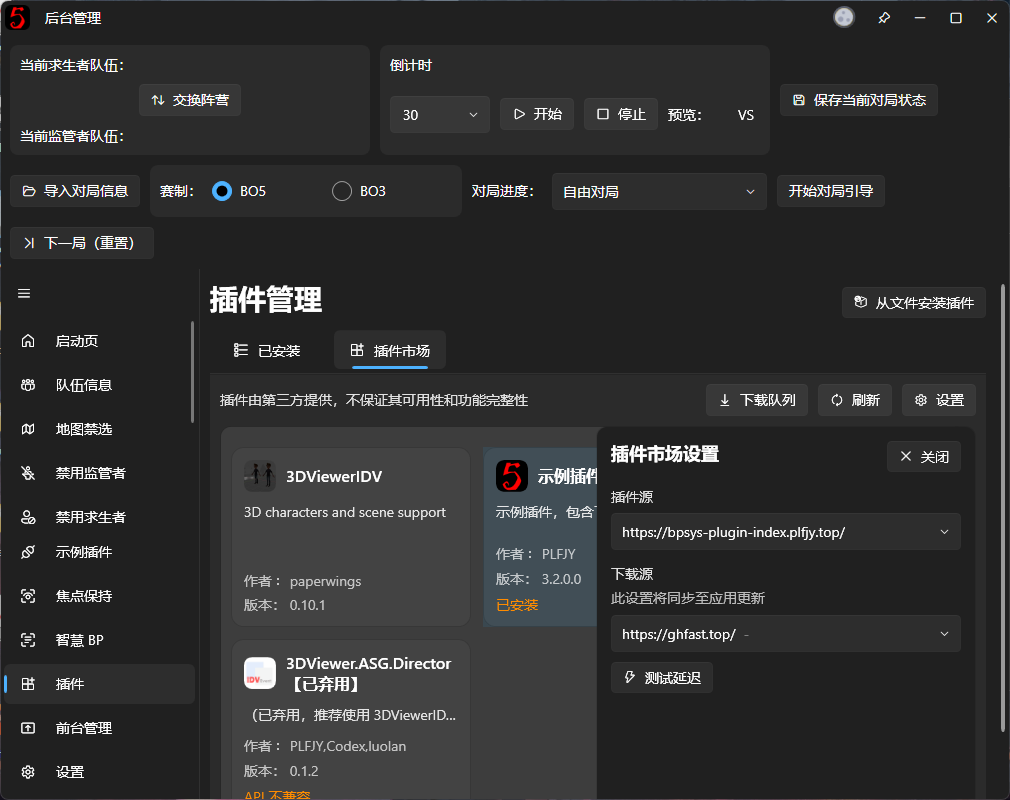
Two settings are easy to confuse.
Plugin Registry Source
This determines where the software retrieves the plugin list and plugin information.
Two preset addresses are available:
Default Plugin Registry Source
https://bpsys-plugin-index.plfjy.top/
GitHub Raw Plugin Registry Source
https://raw.githubusercontent.com/PLFJY/neo-bpsys.PluginMarket/refs/heads/main/PluginIndex.json
Normally, keep the default.
If it fails, try GitHub Raw.
The software saves the setting and reloads the marketplace list after switching.
Download Mirror
This mainly controls downloads of GitHub-hosted resources.
For example, a plugin installer hosted on GitHub can be retrieved through the configured GitHub mirror.
The settings have different roles:
- Plugin Registry Source determines where the plugin list comes from.
- Download Mirror affects download addresses for related GitHub resources.
Download source selection is currently offered mainly in the Chinese interface.
The GitHub mirror setting also synchronizes to software updates and other features sharing the same download settings. It affects more than the marketplace.
Advanced 2. Plugin directories and manual troubleshooting
Normally, you do not need to edit plugin files manually.
Knowing the storage locations can help with loading failures, backups, and troubleshooting.
Where are plugin files stored?
User-installed plugins are usually stored in:
%APPDATA%\neo-bpsys-wpf\PluginsEach has its own directory containing its manifest and runtime files.
Some Built-in Plugins are in the Plugins folder under the program installation directory.
Separate plugin configurations are usually stored in:
%APPDATA%\neo-bpsys-wpf\PluginConfigsPlugins with their own configuration files usually create a corresponding directory here.
Why do plugin updates require a restart?
At startup, the software loads plugin code and registers operator pages, overlay windows, and services.
These components participate in the running program and cannot be safely replaced like ordinary images or configuration files.
Updates therefore prepare new files first and apply them at the next startup.
Most users only need to restart when prompted.
What if a plugin fails to load?
Check in this order:
- Is it enabled?
- Has the software restarted since installation or update?
- Does its status show an error?
- Are the main program and Plugin API Versions compatible?
- Are any of the plugin's own dependencies missing?
If the problem persists, use Open Log Directory in Settings and send the logs to the plugin author for investigation.
Avoid deleting or replacing plugin DLLs while the software is running, which can cause loading errors or file-in-use problems.
Advanced 3. Plugin development and custom extensions
Developers can use the plugin interfaces to build their own plugins.
Supported extensions include:
- New operator management pages.
- Independent overlay windows.
- Custom controls in the v3 Overlay Designer.
- Custom animation trigger events.
- Other services and features that interact with the main program.
Compatible plugin controls appear under Add Control in the designer after installation.
Plugins can also expose custom animation events for users to configure control behaviors.
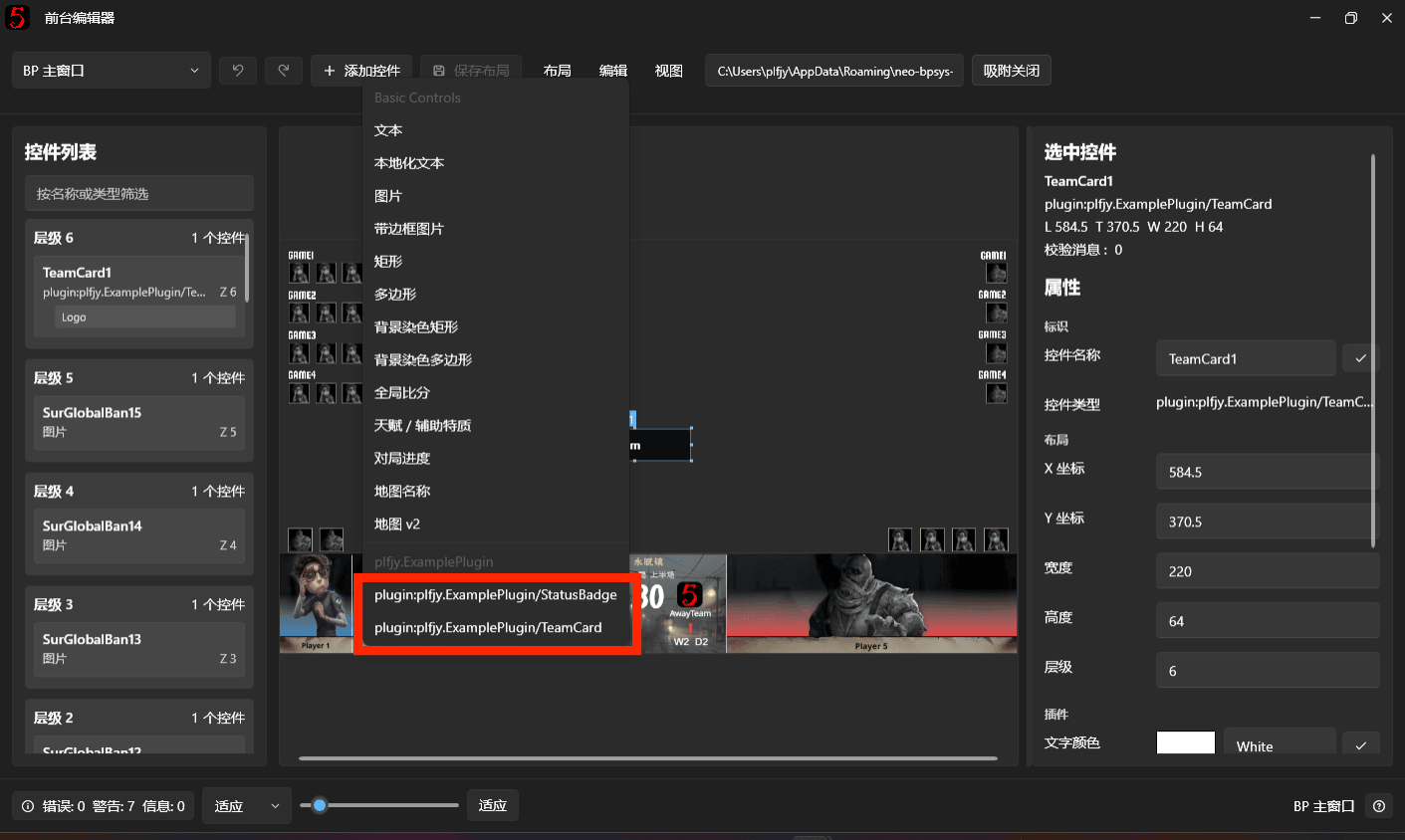
The 3.x interfaces differ from some older versions. Plugins built with old APIs may not load correctly in the current version.
This guide does not cover plugin implementation. See the repository's Plugin SDK development documentation if you want to develop plugins.
You do not need to understand these interfaces merely to install, use, or manage plugins.